
1. Login to your SolusVM Control Panel.
2. If you have multiple VPS, select the appropriate one.
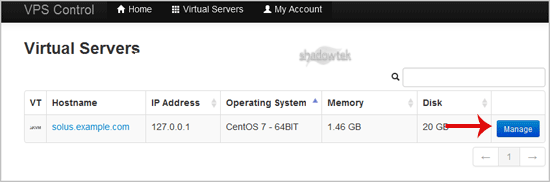
3. Scroll down, and under the "settings"¬ù tab, change the Boot Order to "(1) CDROM (2) Hard Disk"¬ù.

4. Now click on the "CDRom"¬ù tab and if the CD-ROM is already mounted, click on unmount and then select your operating system from list. Then click on "Mount"¬ù.

5. Reboot your VPS by clicking on "Reboot"¬ù and it will show a confirmation window. Then click on "Yes"¬ù.

6. Now quickly click on VNC without waiting.

7. The new VNC page will open. Click on "Java VNC Client"¬ù or on the "VNC"¬ù button.

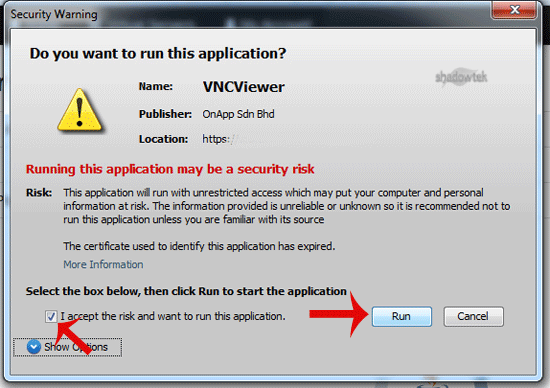
8. It will prompt for confirmation. Click "Ok"¬ù or "Continue"¬ù and it will show "Security Warning"¬ù. Accept it and click on "run"¬ù.
9. Most operating systems will ask you to "Press any button to start OS Installation"¬ù while booting. You need to press any key on your keyboard when asked and the OS Installation/Reinstallation will begin. It may also show you an option like "Install OS"¬ù, "Test this media"¬ù. For OS Installation/Reinstallation you need to select "Install OS"¬ù and press the enter button.

Once the installation begins, it while set up the OS and ask you to create partitions, set root/admin passwords, etc.
After the installation is complete, don"t forget to set your VPS Boot Order to "(1) Hard Disk (2) CDROM"¬ù, otherwise it will reboot your VPS and start in installation mode, instead of normal mode.
